When you need Word, not a PDF
A PDF is final by design — great for sharing, painful for editing. When a contract or report needs real changes, converting back to Word beats retyping it.
Good conversion keeps the structure: headings stay headings, tables stay tables, and the reading order survives.
Getting a clean result
Digital PDFs (exported from Word, Google Docs, or a print-to-PDF) convert almost perfectly — the text layer is already there.
Scanned PDFs are images of text, so run OCR first; otherwise the Word file is a picture you can't edit.
Round-tripping safely
Edit in Word, then convert back with Word to PDF to lock the layout again before sending.
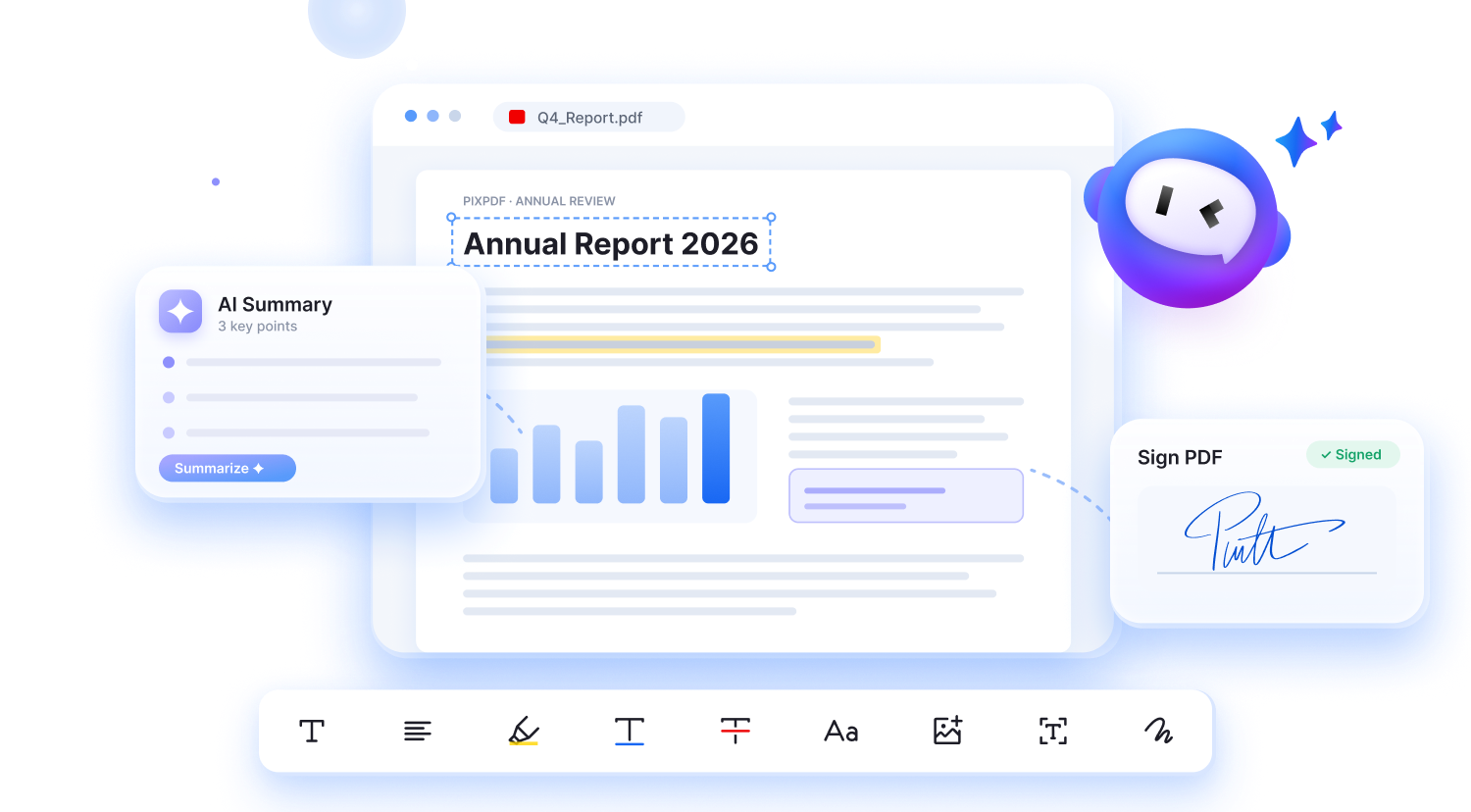
For small fixes — a date, a name, a signature — skip the round trip and use Edit PDF directly.